Elementor Template Kits: The Complete Guide to Building Professional WordPress Websites
If you’ve spent time in the WordPress world, you’ve probably heard of Elementor Template Kits and wondered whether they’re worth the hype or just another shortcut that creates more problems than it solves.
This guide settles that question. It covers what template kits are, how to evaluate and choose one, how to build with them properly, and what to watch out for along the way. Whether you’re a freelancer working through a steady stream of client projects or a business owner putting together your first site, there’s something here for you.
Who This Guide Is For
Freelancers working with multiple clients will find that template kits dramatically reduce the setup time on new projects. Instead of rebuilding from scratch every time, you start with a structured foundation and focus your energy on brand customisation and content.
Agencies can use kits to maintain design consistency across client work. With the right system in place, a new project brief doesn’t mean reinventing the wheel: it means selecting the right kit, adjusting the globals, and getting on with it.
Business owners building their own sites benefit from the visual editor Elementor provides, which means you’re not dependent on a developer for every small change. A good kit gives you a professional starting point that you can own and maintain.
WordPress beginners who want a professional-looking site without learning design from scratch can use template kits as a starting framework rather than building layouts element by element.
What Are Elementor Template Kits?
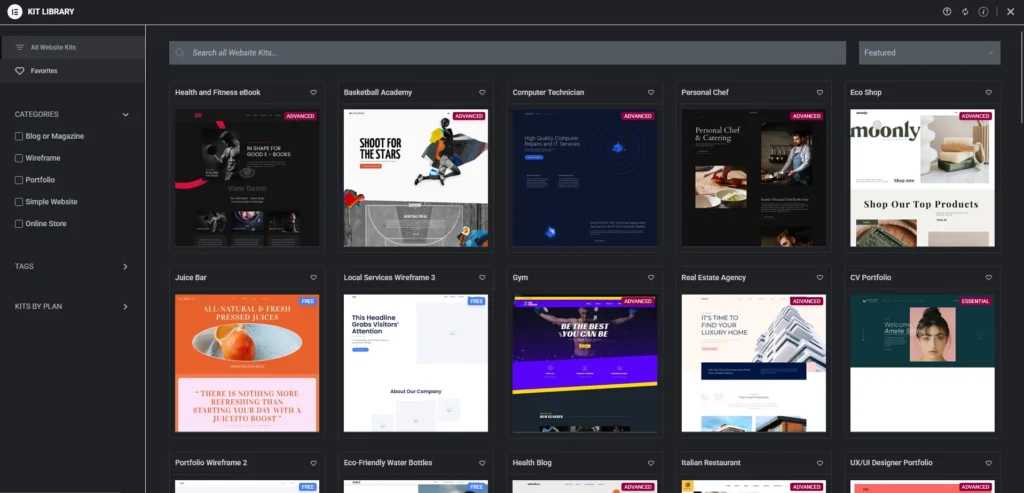
Elementor Template Kits are collections of pre-designed pages, sections, and global style settings built specifically for the Elementor page builder (see the right Elementor addons for template kits). Unlike a standard WordPress theme, a kit doesn’t dictate your site’s entire structure; it gives you a set of coordinated building blocks to assemble and customise.
A typical kit includes:
- A homepage layout
- Inner page templates (About, Services, Contact, Blog)
- Pre-styled headers and footers
- Global colour palettes and typography settings
- Section templates you can mix into any page
The difference from a traditional theme is flexibility. Themes bundle design and functionality together in ways that can be hard to unpick. Kits hand the design control to Elementor itself, so everything you see is what you built in the visual editor, no hunting through theme settings or writing CSS overrides.
One thing worth clarifying upfront: template kits do not replace your WordPress theme. They layer design templates on top of a lightweight base theme that you install separately.
Where to Find Elementor Template Kits
- Elementor Kit Library: Free and Pro kits built and maintained by Elementor directly. The safest starting point for compatibility.
- Envato Elements: A large marketplace of premium kits covering most industries. Subscription-based access.
- TemplateMonster: Individually priced kits with strong industry-specific options for agencies.
What to Look for Before You Download or Buy
Not all kits are created equal. Before committing to one, check the following:
Last updated date. A kit that hasn’t been updated in over a year may have compatibility issues with the current version of Elementor or WordPress. Elementor updates frequently; older kits can break.
Elementor version requirements. Some kits require Elementor Pro. Make sure you know what you’re getting into before you import.
Demo content. The best kits include full demo pages with real placeholder text, images, and page structures, so you can see exactly what you’re getting before you strip it back. Kits that only show a static screenshot are harder to evaluate.
Reviews and support. On Envato and TemplateMonster, read recent reviews specifically for comments on plugin conflicts, broken imports, or unresponsive support. A five-star average from three years ago tells you very little.
Plugin dependencies. Some kits require third-party plugins beyond Elementor to function properly. Check the plugin requirements in the kit documentation before buying.
Template Kits vs. Traditional WordPress Themes
Understanding where template kits sit relative to traditional themes helps you make a better choice for each project.
| Feature | Elementor Template Kits | Traditional WordPress Themes |
|---|---|---|
| Customisation | Full control via the visual editor | Limited without custom coding |
| Theme dependency | Works with any lightweight base theme | Often tied to a specific theme’s structure |
| Design flexibility | Easily adapted for unique branding | Pre-defined layouts with less room to manoeuvre |
| Performance | Lightweight when paired with a minimal base theme | Can be bloated with features you don’t use |
| Learning curve | Beginner-friendly with a visual editor | Requires familiarity with theme settings and structure |
| Update risk | Layout controlled by Elementor templates | Theme updates can override design elements |
Traditional themes bundle design and functionality together. If a theme’s built-in header doesn’t suit your client, you’re either writing custom code or working around limitations. With a kit, you’re customising everything through Elementor’s interface, the same interface you’re already using for the rest of the page.
Elementor Free vs. Pro: What You Get
| Feature | Elementor Free | Elementor Pro |
|---|---|---|
| Template Kits support | Basic kits (10+ free options) | 100+ premium kits |
| Theme Builder | Not available | Custom headers, footers, and archive templates |
| Dynamic content | Not available | Integrates with ACF, WooCommerce, and Metabox |
| WooCommerce tools | Basic product pages | Advanced store customisation |
| Popup Builder | Not available | Advanced popups and lead capture |
The free version is a reasonable starting point, but if you’re building for clients or running an eCommerce store, the Pro version pays for itself quickly. The Theme Builder alone, which lets you create custom headers and footers that apply site-wide, is worth the upgrade for anyone doing this professionally. Dynamic content support takes things further, allowing product pages, user profiles, and archive pages to pull live data automatically. This works with tools like ACF (Advanced Custom Fields, a plugin for adding custom data to WordPress content) and WooCommerce.
Choosing the Right Base Theme
Before you import a kit, you need a base theme installed. Elementor works best with lightweight themes that stay out of the way and let the page builder do the heavy lifting. The three most commonly used are Hello Elementor, Astra, and Kadence.
| Feature | Hello Elementor | Astra | Kadence |
|---|---|---|---|
| Performance | Ultra-lightweight, minimal styling | Fast, with some built-in styling | Lightweight, slightly more feature-packed |
| Customisation | Everything done in Elementor | Highly customisable, works well with Elementor | Advanced options, including its own header/footer builder |
| WooCommerce | Basic support | Strong WooCommerce integration | Deep WooCommerce integration |
| Header/footer | Requires Elementor Pro | Via Astra Pro | Built-in, works with Elementor |
| Best for | Users who want a blank canvas | Freelancers, agencies, WooCommerce sites | Businesses needing advanced flexibility |
Hello Elementor is the right choice if you want Elementor to control everything and you have Elementor Pro for the Theme Builder. There’s almost no theme-level styling to interfere. Many template kits are designed with Hello Elementor in mind, which minimises styling conflicts during import.
Astra is the most popular choice for agencies. It’s well-optimised, plays nicely with Elementor, and its free version includes enough features to get started without needing Astra Pro.
Kadence is worth considering for complex builds, particularly WooCommerce stores where you want granular control over the cart and checkout experience.
A Real-World Workflow: From Brief to Handover
Understanding the steps in theory is one thing. Here’s how a project actually flows when you’re using a template kit properly.
- Receive the brief. Understand the industry, the audience, the tone, and the pages needed. Make a list of the core pages before you touch Elementor.
- Select a kit. Filter by industry or style. Check the demo, verify Elementor version compatibility, and confirm whether the kit requires Pro. Always import into a staging environment first. Kit imports can modify global settings and affect existing page layouts on a live site.
- Configure global settings first. Before touching individual pages, set the global colours and typography to match the brand. Doing this upfront means every page in the kit reflects the right brand settings automatically. If you skip this step, you’ll be making the same change dozens of times.
- Customise page by page. Work through the pages systematically: homepage first, then inner pages. Swap out placeholder content, adjust section layouts, and cut anything the client doesn’t need.
- QA on multiple devices. Check every page on mobile and tablet before sign-off. What looks fine on desktop often needs adjustment on smaller screens.
- Optimise before launch. Compress images, run a cache plugin, and check page speed before handing over. Don’t leave this to the client.
- Hand over with documentation. A brief document explaining how to edit text, update images, and manage pages in Elementor saves you follow-up support time and makes the client feel confident owning their site.
Practical Setup: Installing and Configuring Your Template Kit
1. Install Elementor and Import Your Kit
Install and activate Elementor (free or Pro) from the WordPress plugin directory. Once active, navigate to Templates > Kit Library in your WordPress dashboard. Browse the available kits, select one, and import it.
If you’re using a third-party kit from Envato or TemplateMonster, you’ll typically download a ZIP file and import it via Elementor > My Templates or through the Kit Library import option.
2. Configure Global Settings
Go to Elementor > Site Settings and set your global colours and typography before you do anything else. This is the single most important step in a kit-based workflow. Every element in the kit references these global settings: change them here, and the entire site updates.
Set your primary, secondary, accent, and text colours. Set your heading and body fonts. Once this is done, the kit will look like your client’s brand, not the kit’s demo.
3. Edit Pages and Sections
Open each page in Elementor and work through it methodically. Replace placeholder text and images, delete sections you don’t need, and rearrange the layout to match the brief.
A few things to watch for: check that images are appropriately sized for their containers, that button links are updated, and that any contact forms are connected to the right email address before the site goes live.
4. Add Animations and Interactive Elements
Elementor’s Entrance Animations and Motion Effects are worth using, but only selectively. Subtle fade-in animations on sections add polish without distracting from the content. Avoid complex animations on elements that appear above the fold, as they can delay the perceived load time of the most important content on the page.
5. Check Mobile Responsiveness
Switch to Elementor’s Responsive Mode and review every page at mobile and tablet breakpoints. Common issues with imported kits include text that overlaps on small screens, sections with excessive padding, and navigation menus that don’t collapse cleanly.
Use the Column Gap and Padding settings in the mobile breakpoint to correct spacing issues without affecting the desktop layout.
Performance: What Good Looks Like
Template kits vary considerably in how well they perform out of the box. A fast Elementor site should achieve a Google Lighthouse score of 80 or above on mobile. Lighthouse is Google’s open-source tool for measuring web performance, accessibility, and SEO, accessible via Chrome DevTools or web.dev/measure. A score below 60 is a problem worth fixing before launch.
Signs a kit is bloated: the import process pulls in dozens of fonts, the page uses multiple large background videos, or every section has heavy animation. These are fixable, but they require deliberate cleanup.
Quick wins after import:
- Remove any fonts the kit registered, but you’re not using. Multiple Google Fonts loaded simultaneously are one of the most common causes of slow Elementor sites.
- Compress all images before uploading. A plugin like ShortPixel handles this automatically.
- Enable server-side caching via a plugin like WP Rocket or LiteSpeed Cache.
- In Elementor > Tools, run Regenerate CSS to make sure the stylesheet is current and clean.
- Review the kit’s motion effects. If animations are causing layout shifts, disable them.
A lightweight base theme (Hello Elementor or Astra with minimal add-ons) combined with image compression and caching will get most kit-based sites to a respectable score without extensive optimisation work.
It’s also worth checking Elementor > Settings > Experiments and enabling the performance-related experiments, particularly improved asset loading and optimised DOM output. These are opt-in features that reduce the amount of CSS and JavaScript Elementor loads on the front end.
Licensing: What You Need to Know
This is something many developers overlook until it becomes a problem. If you’re downloading from Envato or TemplateMonster, the licence you purchase determines what you can and can’t do with the kit.
Regular licence typically covers use on a single end product: one website, where end users are not charged for access. This covers most client websites.
Extended licence covers use on a product that end users pay to access: for example, a SaaS product, a membership site where users pay to join, or a theme you resell.
Key points:
- If you’re building a site for a paying client, a regular licence is usually sufficient. But read the licence terms. Some marketplaces phrase this differently.
- If you’re building a site template you plan to resell or use on multiple client sites without purchasing a new licence each time, you may need an extended licence or a specific multi-use agreement.
- Elementor’s own Kit Library operates under Elementor’s terms, which are generally permissive for client work.
When in doubt, check the specific licence page for the kit you’re purchasing. The documentation is usually clear.
Common Mistakes to Avoid
A few things that cause disproportionate problems:
Importing a kit onto a live site. Always use a staging environment. Kit imports can overwrite global settings and affect existing pages.
Skipping global settings and going straight to page editing. You’ll end up making the same colour and font changes on every page individually. Set globals first.
Mixing kits from different sources. Importing multiple kits often results in duplicate global styles and conflicting typography settings. If you must mix, unify the global settings before you proceed.
Not making a backup before any import. This applies every time, without exception.
Leaving demo images on the site. Many template kits ship with placeholder stock images. Replace all of them before launch. Leaving kit demo images in place creates copyright exposure and makes the site look unfinished.
For a more detailed breakdown of what goes wrong and how to avoid it, see our guide on common mistakes to avoid with Elementor Template Kits.
Troubleshooting Common Issues
Design and Layout
Broken layout after importing a kit. Clear your browser cache and run Elementor > Tools > Regenerate CSS. If the issue persists, check whether your base theme has any conflicting global styles.
Text overlaps on mobile. Open the affected section in mobile view and adjust the column padding and margin settings. Enabling a column gap often resolves overlapping elements.
Speed and Performance
Slow loading times. The most common causes are uncompressed images, multiple Google Fonts, and uncached pages. See the Performance section above for a full checklist of quick wins.
Heavy animations causing lag. Reduce animation intensity in Elementor > Motion Effects or replace heavy CSS animations with lightweight SVG animations via LottieFiles.
Plugin Conflicts
Elementor editor not loading. Disable plugins one by one to identify the conflict. Common culprits are security plugins and caching plugins that interfere with the editor’s scripts. Always test with your cache disabled when troubleshooting editor issues.
Kit import fails or times out. This is usually a server-side file size or timeout limit. Increase the WordPress upload limit via your hosting control panel, or import the kit using the Elementor Template Kit plugin if the ZIP upload is failing through the dashboard.
Frequently Asked Questions
Final Thoughts
Elementor Template Kits are a practical tool for anyone building websites at pace, whether that’s one site or twenty. The value isn’t just in the speed; it’s in having a structured starting point that you can adapt, rather than building every layout decision from first principles on every project.
For agencies and freelancers managing multiple projects, template kits also provide a repeatable production workflow that improves consistency and reduces delivery time across the board.
The kits themselves are only part of the equation. How you configure globals, evaluate kits before buying, manage licences, and optimise for performance is what separates a site that looks professional from one that merely started that way.
If you’d like help choosing the right kit or getting more from your Elementor setup, our web development team is happy to help.
Explore More in This Series
- Choosing the Right Elementor Template Kit for Your Business: Matching kits to your niche and use case.
- Common Mistakes to Avoid with Elementor Template Kits: Pro tips for cleaner workflows.
- Dynamic Content in Elementor Template Kits: Advanced customisation and conditional logic.