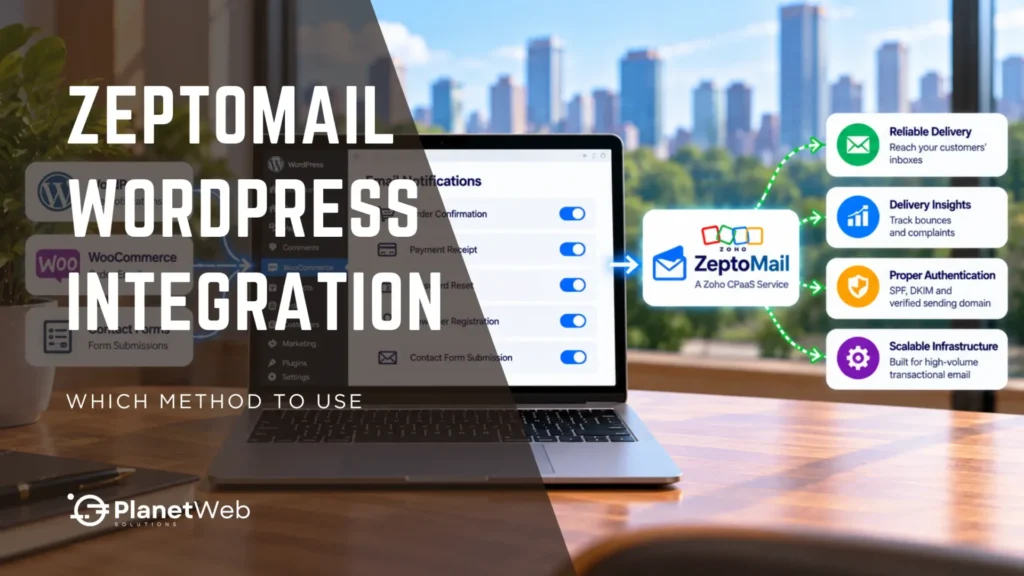
ZeptoMail WordPress Integration: Fixing the Sending Path
WordPress hands every outgoing message to the web server, so order confirmations, password resets and form notifications depend on whatever mail setup the hosting provider configured. When one of them fails, WordPress gives the site owner little warning, and the first sign is often a customer reporting a missing email.
ZeptoMail, now part of Zoho CPaaS, is Zoho’s transactional email service, built for exactly these messages. A ZeptoMail WordPress integration sends them through that service instead of the web server’s mail setup, while the site’s templates and triggers stay as they are. Accounts set up before the name change keep their existing SMTP credentials, API tokens and sending domains.
This guide covers how the integration works on WordPress and WooCommerce sites and in custom applications. Account creation, domain verification and credit pricing are walked through in the ZeptoMail setup guide for Nigeria, so they are not repeated here.
How WordPress Sends Email
A message passes through several handoffs between a customer action and an inbox. Each handoff can delay, reject or filter it.
The wp_mail() Handoff Chain
When WordPress or WooCommerce sends a message, the wp_mail() function takes it and, by default, passes it to the mail system on the web server, normally through PHP’s mail function. That system then attempts delivery with the settings the host chose.
WordPress records only that the server accepted the message, and it cannot confirm that the message reached an inbox.
What the Host Controls
Four factors sit with the hosting provider, and each one affects whether a message arrives.
| Factor | What Goes Wrong | What Changes With ZeptoMail |
|---|---|---|
| Sender IP reputation | On shared hosting, other sites on the same IP can get it flagged, and every message from that IP suffers | Messages leave through Zoho’s sending infrastructure instead of the site’s shared hosting IP, which removes the dependence on neighbouring sites |
| Authentication | PHP’s mail function has no native SMTP authentication, and domain authentication depends on how the host configured the server, so Gmail, Outlook and Yahoo may filter or reject the messages | The sending domain is verified with the SPF and DKIM records that Zoho provides |
| Sending limits | Hosts restrict or block outbound mail, and port 25 is commonly blocked on shared hosting | Messages go out through Zoho’s SMTP or API endpoints instead of the host’s mail server |
| Delivery feedback | Bounces and spam complaints do not reach WordPress, so failures go unseen | Bounces and spam complaints become visible in ZeptoMail and can also reach the application through webhooks |
The records involved in the authentication row are explained in full in email authentication in Nigeria. The hosting side of the problem is covered in web hosting in Nigeria, and cPanel email problems in Nigeria describes how hosting-based email fails in practice.
What Changes and What Stays the Same
The integration changes only the path a message takes after WordPress creates it. Email templates, order status triggers and message content sit above that path and are untouched.
What It Will Not Fix
Better infrastructure cannot repair problems that start earlier in the chain. Four failures remain after a correct integration:
- A customer who mistypes an address at checkout will not receive the message, no matter what sends it.
- Spam-triggering content, such as aggressive subject lines or suspicious links, can still be filtered.
- Misfiring templates, hooks or plugins in WooCommerce produce the same errors through any sending path.
- Newsletters and promotions fall outside the service because email on the platform is transactional only. The two types are compared in transactional email versus email marketing.
Before You Start
Four things should be in place before any connection method is set up:
- A ZeptoMail account with a verified sending domain and a From address on that domain. Zoho recommends SPF, DKIM and DMARC records for the domain, and the setup guide covers verification.
- An Agent for the site. Its SMTP/API section holds the Send API key used by the plugin and by API calls, and the Send Mail token used for SMTP.
- The hosted region of the Zoho account, which the official plugin asks for.
- A self-hosted WordPress site, because both Zoho guides assume one.
Once these are ready, the connection method decides which credential gets used.
Choosing a Connection Method
A ZeptoMail WordPress integration can connect in three ways. The right one depends on who manages the site and what it needs to do with delivery events.
| Method | How It Connects | Suits | Worth Knowing |
|---|---|---|---|
| Official Zoho CPaaS plugin | Sends through the ZeptoMail API using a Send API key | Standard WordPress and WooCommerce sites that want the shortest route | Works on self-hosted WordPress only, and only one mail plugin should handle outgoing mail |
| General SMTP plugin | WP Mail SMTP, FluentSMTP or Post SMTP connect to the ZeptoMail SMTP server | Sites already using one of these plugins, or teams that may change provider later | Zoho documents the setup steps for each of the three |
| Direct API calls | Application code sends HTTP requests with a Send API key | Custom applications and teams that act on delivery events | Needs development work, queueing and error handling |
The Official Zoho CPaaS Plugin
Zoho publishes the Zoho CPaaS Plugin for WordPress, which runs on self-hosted sites. The WordPress plugin directory still lists it as Zoho ZeptoMail. It sends through the ZeptoMail API, so it needs a Send API key from the SMTP/API section of an Agent, which is the sending configuration for one stream of email. Because it works through wp_mail(), the other plugins and themes that send mail need no changes.
Setting Up the Official Plugin
The plugin needs a self-hosted site running PHP 5.6 or later. Setup follows Zoho’s plugin documentation in seven steps:
- Install and activate the plugin from Plugins > Add New.
- Open the Zoho CPaaS tab in the left menu and select the hosted region of the account.
- Choose HTML or plain text as the default email format.
- Enter a From name, From address and Send API key. Copy the key from the SMTP/API section of the Agent, and add up to three sets, from the same Agent or different ones.
- Mark one From address as the default. The plugin uses it when a message is sent from an address that is not on the list or is invalid.
- Set how many log entries to display, then save and test. The plugin checks the settings and reports any discrepancy, which must be fixed before emails send.
- Open Zoho CPaaS > Test Mail, choose a validated From address, enter a recipient, subject and content, and click Send Mail.
Plugin Logs and Limits
The plugin keeps a log of emails that did not reach their recipients, with the reason for each and a resend button. The log can be filtered by common error types.
The plugin has two limits. Other mail plugins can stay installed, but only one should handle outgoing mail at a time, because two plugins can conflict and block emails silently. The From Name field also rejects emojis, HTML and most symbols.
SMTP Through a General SMTP Plugin
Sites that already run WP Mail SMTP, FluentSMTP or Post SMTP can connect them to ZeptoMail with the same four values. Open the Agent in ZeptoMail, go to its SMTP/API tab and copy the username and the Send Mail token. Zoho’s WordPress SMTP guide lists the values:
- Host:
smtp.zeptomail.com - Port: 465 with SSL, or 587 with TLS
- Username:
emailapikey - Password: the Send Mail token
ZeptoMail accepts only ports 465 and 587. Each plugin takes the values in a slightly different place:
- WP Mail SMTP: choose Other SMTP as the mailer, enter the values and save, then send a message from WP Mail SMTP > Tools > Email Test.
- Post SMTP: run the setup wizard from Post SMTP > Settings, enter the From name and From email, select SMTP and enter the values. Failed messages appear in Post SMTP > Email Log.
- FluentSMTP: choose Other SMTP as the connection, enter the values and save, then use the Email Test tab.
If a plugin rejects the long token as a password, Zoho advises generating a shorter password in ZeptoMail. A general SMTP plugin also keeps the provider replaceable, because changing sending service only means entering new credentials.
Direct API Calls
Custom code can call the ZeptoMail API directly, which suits applications that need control over sending, error handling and delivery events. API sending needs code changes and explicit error handling that a plugin would otherwise provide.
For most WordPress and WooCommerce sites, the official plugin or an existing SMTP plugin is the practical starting point. Direct API work becomes justified when the application has to react to delivery events or send from custom code.
WooCommerce Emails After Integration
WooCommerce sends its customer emails through wp_mail(), so they follow whichever sending path the site uses. The integration matters most for the messages customers rely on after checkout.
Emails That Carry the Most Weight
The order confirmation tells the customer that the order was received, and a late one can prompt support tickets. Payment receipts give both sides a record of the transaction. Shipping notifications head off “where is my order?” enquiries, and password resets are the message a customer waits on in real time.
Where They Break
Delivery failures in a store tend to follow four patterns:
- Hosts that restrict outbound mail can delay confirmations during sales and launches.
- Provider filtering sends confirmations to spam, and the store hears about it only from complaints.
- Bounces from wrong addresses go unseen when nothing reports them.
- Missing receipts can lead to disputes and extra support work.
Other Plugins That Send Mail
WooCommerce is rarely the only sender. Contact forms, membership plugins and course platforms generally send through wp_mail() as well, so they follow the same path once the integration is in place. Each has its own From address setting, and that address needs to sit on the verified domain.
With the official plugin, a message sent from an address that is not on its list goes out from the default address instead, and an address on an unverified domain fails with the SM_111 error. Each of these plugins needs its own test message after the integration goes live.
Testing After Integration
Testing should happen after every change to the sending setup. The sequence below follows the checks Zoho recommends for WordPress sites:
- Confirm that each email type is enabled under WooCommerce > Settings > Emails.
- Send a test message from the plugin’s test screen or the SMTP plugin’s test tool.
- Place a test order and check that the confirmation arrives in the expected inbox, shows the right sender name and is not incorrectly filtered as spam.
- Review the plugin log or ZeptoMail dashboard for errors.
Custom Web Applications
Applications built outside WordPress use the API in the same way: the application sends an HTTP request with a Send API key instead of relying on the host’s mail server. The patterns below apply regardless of language.
Queue-Based Sending
Production systems queue messages and send them in the background, so a delivery problem does not block a user’s request. A user who clicks “reset password” should not wait on an external service to respond.
Retries
Network failures and temporary API errors are routine. Retrying with exponential backoff, meaning progressively longer waits between attempts, handles many of them without flooding the service.
Failure Handling by Message Type
A failed one-time passcode needs an immediate alert or an alternative channel, while a weekly report that bounces can wait for manual review. The application should return a structured result that code can act on, so failures do not go unnoticed.
Webhooks for Delivery Events
ZeptoMail webhooks are configured per Agent and send an HTTP POST in real time for opens, link clicks, soft bounces, hard bounces and spam complaints. Each request carries a signature header, so the receiving application can confirm that it came from Zoho. This lets the application record what happened to each message.
Troubleshooting Common Failures
Most failures after setup trace back to a short list of causes, and Zoho’s documentation covers them:
| Symptom | Likely Cause | Fix |
|---|---|---|
| Error SERR_157 | The Send API key is invalid | Copy the correct key from the Agent |
| Error SM_111 | The domain of the From address is not verified | Verify the domain or use an address on a verified domain |
| Error LE_102 | Credits are exhausted | Buy more credits to resume sending |
| Nothing reaches ZeptoMail | Another plugin is overriding wp_mail() | Disable other mail plugins one at a time and send a test message after each |
| SMTP connection errors | A wrong host, port, encryption type or credential, or outbound SMTP blocked by the host | Use 465 with SSL or 587 with TLS, recheck the credentials and ask the host about outbound SMTP |
| From name rejected | The field contains emojis, HTML or unsupported symbols | Remove them from the field |
| Messages accepted but missing from the inbox | The problem has moved downstream of ZeptoMail | Check the bounce and complaint reports, then the SPF and DKIM records, including any duplicate SPF records |
When none of these apply, send a test message with the other mail plugins disabled and turn on WordPress debug logging to read the error behind the failure.
Mistakes That Undermine the Integration
Mixing Transactional and Marketing Email
Sending promotions through ZeptoMail risks spam complaints that damage the reputation order confirmations depend on, which is why Zoho points marketing to Zoho Campaigns. Keeping the two on separate tools helps protect both.
Treating Sent as Delivered
A success response in the application log means ZeptoMail accepted the message. Bounces and complaints that follow appear in ZeptoMail’s reporting and webhooks, so someone needs to review them regularly. Without that review, a bounce problem can go unnoticed for a long time.
Leaving Authentication and Reputation Unmonitored
Mailbox providers judge a sender by bounce rates, spam complaints and other recipient signals, so reputation needs periodic checking after go-live. Authentication records can also change over time. A second SPF record added later for another service, for example, can break the one that was working. Bounce and complaint thresholds and Gmail’s reputation tools are set out in email deliverability in Nigeria.
Go-Live Checklist
The first week after the switch is when hidden problems show up. These checks cover what the earlier tests cannot:
- Read the plugin log or ZeptoMail reporting every day for bounces and failed sends.
- Check the remaining credit balance, because exhausted credits stop sending with the LE_102 error.
- Record which plugin or code sends mail, the hosted region, the default From address and where the Send API key or token is stored.
- Name one person who reviews bounce and complaint reports once the first week ends.
- Confirm that no other mail plugin was activated during the switch.
Signs the Setup Needs Professional Attention
The integration itself is routine for an experienced developer, and outside help is worth considering when one of these signs appears:
- The store receives support tickets about missing emails even though the configuration looks correct.
- Several mail plugins are installed and nobody is sure which one handles outgoing mail.
- Confirmations or password resets are late or missing after the move to ZeptoMail, and the error codes do not explain why.
- A custom plugin or theme overrides how WordPress sends mail.
Need Help with ZeptoMail Integration?
If email is critical to your store or application, getting the integration right the first time saves rework. PlanetWeb handles domain verification, application integration and testing as part of our Zoho Customisation and Integration work. Where an existing email service has to be moved across, our Zoho Setup and Migration service covers that.
To talk through your situation, speak with our team. It helps to bring the sending domain, the site or application involved and a rough monthly email volume.